
Search and filter recipes
Time: about 2 minutes
The bigger your collection gets, the more a good search matters. With the search field and filters, CookBuddy finds the recipe that fits right now in seconds. All you need is a few saved recipes.
-
Step 1: Use the search field
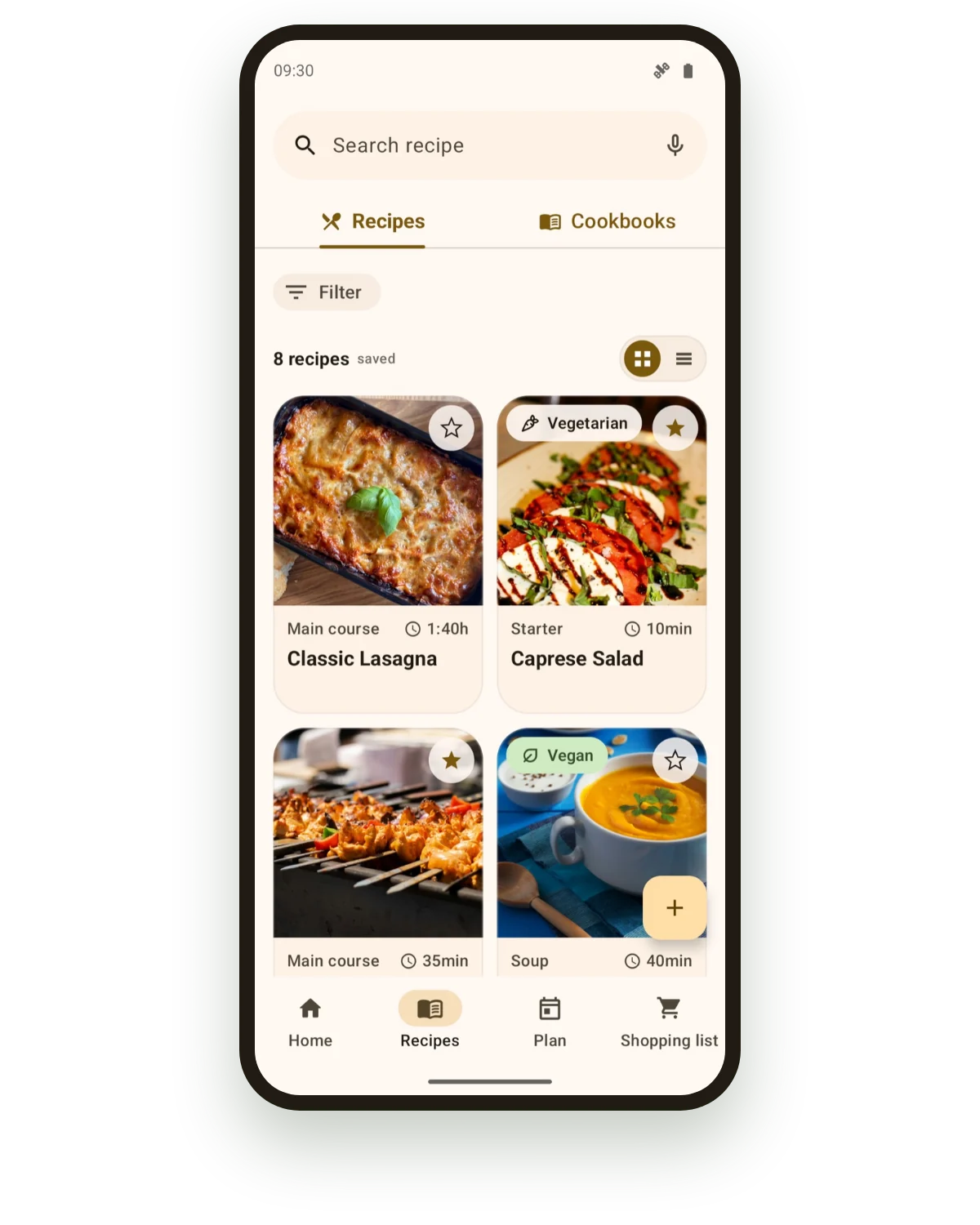
Open the “Recipes” tab. Tap the “Search recipe” field at the top and enter a term, such as a dish or an ingredient. You can also search by voice with the microphone.
-
Step 2: Open the filters
Tap “Filter” below the search field. The “Filter recipes” view opens.
-
Step 3: Filter by diet and season
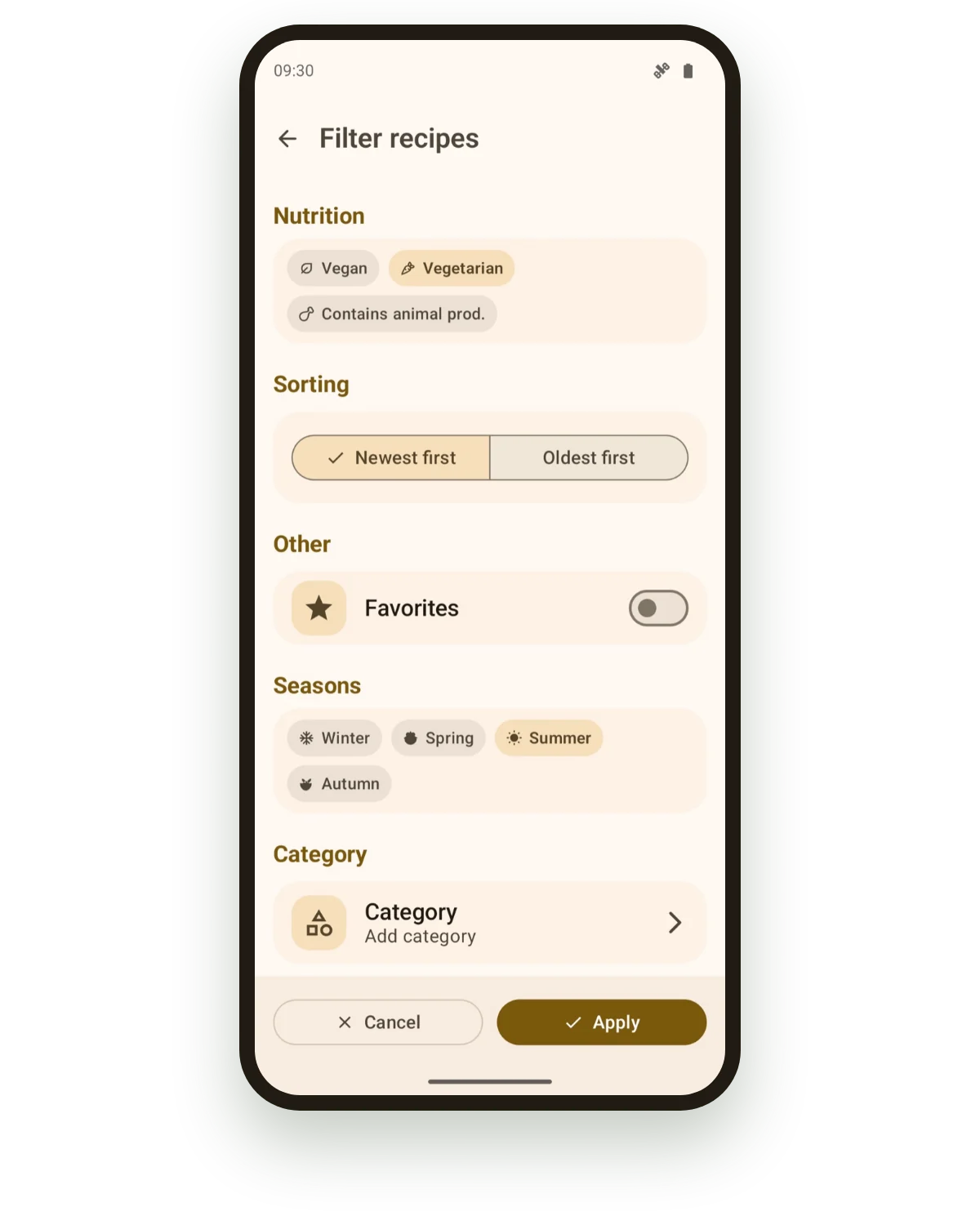
Under “Nutrition”, pick vegan or vegetarian, for example. Under “Seasons”, select the matching season. You can combine several criteria.
-
Step 4: Add category, ingredients and times
Further down, add more conditions under “Category”, “Ingredients” and “Times”. That way you find quick dishes with ingredients you still have at home.
-
Step 5: Favourites and sorting
Under “Other”, switch on “Favorites” to see only your favourite recipes. Under “Sorting”, choose “Newest first”, for example.
-
Step 6: Apply the filters
Tap “Apply”. The recipe list now only shows matching recipes. “Cancel” discards your changes.
Tip: Filters stay active until you change them. If your list suddenly looks shorter, check the filters first.
With CookBuddy Pro: With CookBuddy Pro you can also filter by “Cuisine”, “Occasions” and “Tags”.